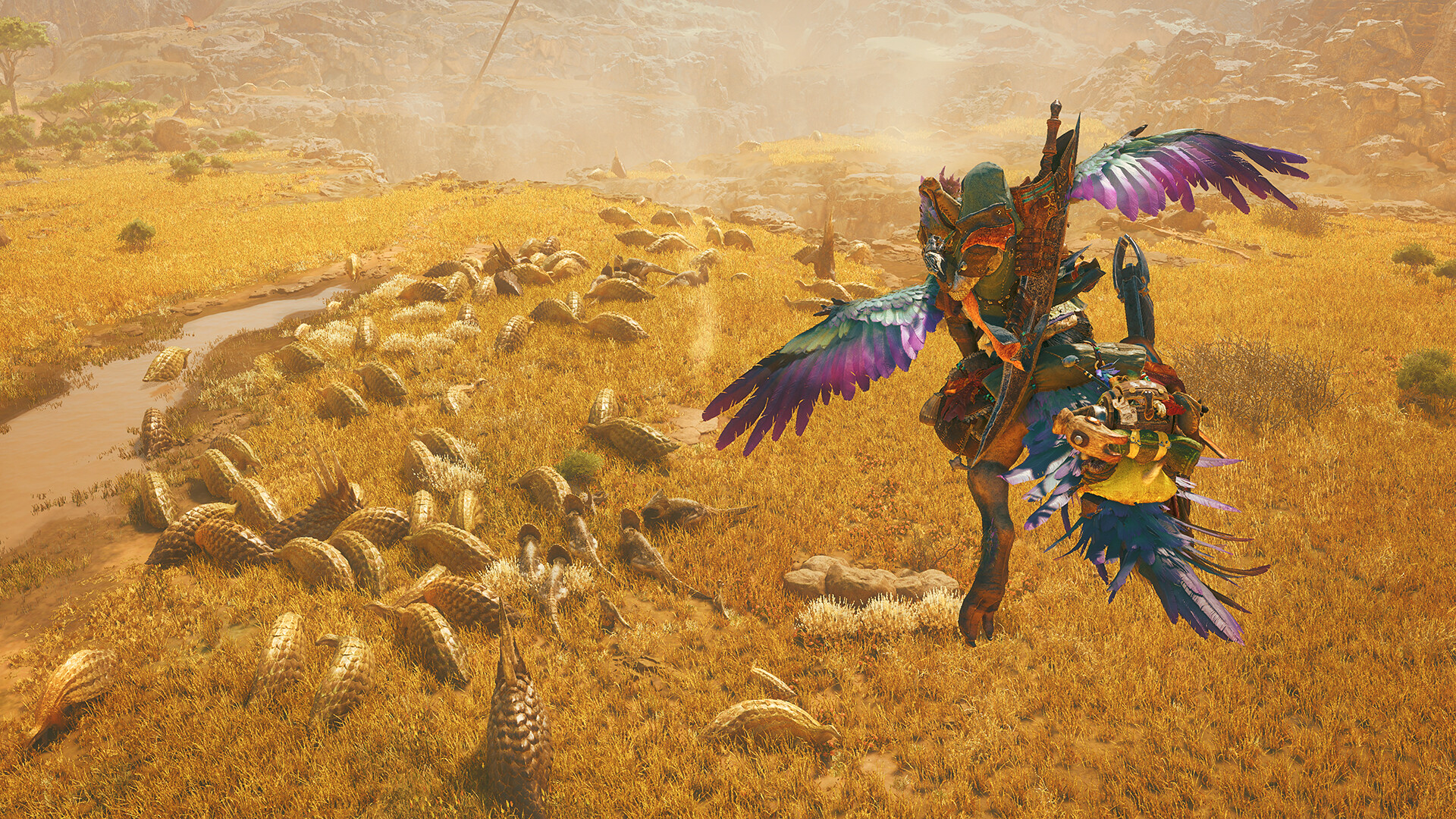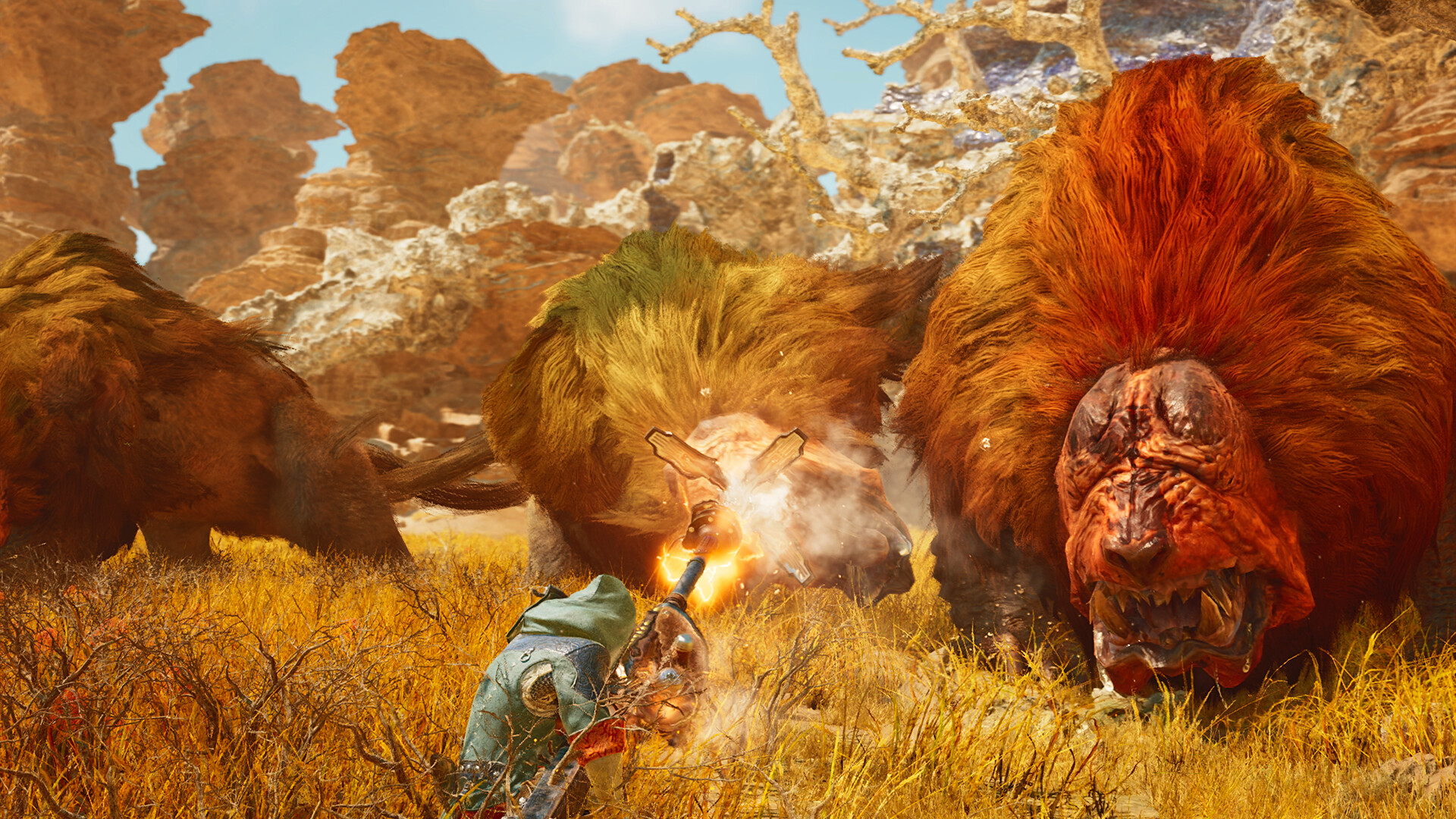
Hunting Giant Monsters Shouldn’t Mean Fighting Your Frame Rate
There is nothing worse than lining up a picture-perfect Great Sword combo, only for a sudden volumetric thunderstorm to roll in and drop your frame rate to 24 FPS right as the monster hip-checks you back to camp. We have all blamed “lag” in Discord when we faint—even in a solo hunt.
Because Monster Hunter Wilds stretches Capcom’s RE Engine across huge, seamless open biomes without loading screens, it pushes both your processor threads and your graphics card much harder than linear RE Engine titles. Here is the complete breakdown of the official Minimum, Recommended, 1440p High, and 4K Ultra PC specs, along with VRAM usage, Steam Deck performance, and settings to tweak.
Want to know about the story, map, and gameplay? Read our full Monster Hunter Wilds Overview & Release Guide.
Official Monster Hunter Wilds PC System Requirements (1080p)
Here are Capcom’s official Minimum and Recommended 1080p hardware specifications:
| Hardware Component | Official Minimum (1080p / 30 FPS Low) | Official Recommended (1080p / 60 FPS Medium w/ Frame Gen) |
|---|---|---|
| Operating System | Windows 10 / 11 (64-Bit) | Windows 10 / 11 (64-Bit) |
| Processor (CPU) | Intel Core i5-10600 / AMD Ryzen 5 3600 | Intel Core i5-12600K / AMD Ryzen 5 5600X |
| Graphics Card (GPU) | NVIDIA GTX 1660 Super (6GB) / AMD RX 5600 XT | NVIDIA RTX 4060 (8GB) / AMD Radeon RX 6700 XT |
| VRAM Allocation | 6 GB Minimum | 8 GB – 12 GB VRAM |
| System Memory (RAM) | 16 GB Dual-Channel DDR4 | 16 GB – 32 GB Dual-Channel RAM |
| SSD Storage Size | 140 GB NVMe SSD Required | 140 GB PCIe 4.0 NVMe SSD |
1440p High & 4K Ultra PC Hardware Tiers
Because the official recommended tier relies on Frame Generation at 1080p, here is what you need for native/Quality 1440p (60–90 FPS) and 4K Ultra (60+ FPS) without heavy upscaling blur:
| Hardware Component | Sweet-Spot 1440p (60–90 FPS High) | Ultra 4K (4K / 60+ FPS Ultra) |
|---|---|---|
| Operating System | Windows 11 64-Bit | Windows 11 64-Bit |
| Processor (CPU) | AMD Ryzen 7 7700X / Intel Core i7-13700K | AMD Ryzen 7 7800X3D / Ryzen 7 9800X3D |
| Graphics Card (GPU) | NVIDIA RTX 4070 Super / AMD RX 7800 XT | NVIDIA RTX 4080 Super / AMD RX 7900 XTX |
| VRAM Allocation | 12 GB – 16 GB GDDR6X | 16 GB+ GDDR6X / GDDR7 |
| System Memory (RAM) | 32 GB DDR5-6000 | 32 GB DDR5-6000 CL30 |
| SSD Storage Size | 140 GB PCIe 4.0 NVMe SSD | 140 GB PCIe 4.0 NVMe SSD |
CPU, VRAM & 140 GB SSD Storage Breakdown
Why is the RE Engine so much hungrier here than in Resident Evil 4 Remake or Street Fighter 6?
- Heavy Multi-Core CPU Simulation: The engine tracks dozens of large and small monsters, environmental traps, and physics interactions across the entire region on your CPU simultaneously—even when they are on the other side of a mountain. An 8-core CPU (or 3D V-Cache chip) prevents 1% low dips in base camp and multi-monster turf wars.
- VRAM Mesh & Texture Streaming: Seamless transitions from village hubs into open biomes keep both NPC assets and high-res monster fur/scales loaded in VRAM. At 1440p High, VRAM usage hovers around 10 GB to 11.5 GB, making 12GB+ VRAM GPUs ideal.
- 140 GB DirectStorage SSD: A fast NVMe SSD is strictly required in Capcom’s spec sheet to stream geometry without camera-turn hitches.
Steam Deck & PC Handheld Compatibility
Can you take your hunts on the road with a Steam Deck OLED or ROG Ally X?
- Steam Deck OLED (15W APU): This is one of the most CPU-intensive games on the Steam Deck. Even at 720p Low with FSR 3 Ultra Performance, heavy weather transitions can dip below 30 FPS due to the 4-core/8-thread Zen 2 CPU bottleneck.
- ROG Ally X & Legion Go (25W–30W Turbo): With 8 Zen 4 cores and 24GB of RAM on the ROG Ally X, running 900p Low/Medium with FSR 3 Balanced + Frame Generation keeps frame rates in the 45 to 55 FPS window.
Best Graphics Settings to Tweak for +35% Better FPS
Before you lower your resolution until the game looks blurry, tweak these four settings first:
- Volumetric Fog Quality (Set to Medium or Low): Dropping this from Ultra to Medium saves up to 14% GPU frame time during sandstorms and thunderstorms with almost zero visual loss in combat.
- Shadow Distance & Cascade Quality (Set to Medium): Cuts CPU draw calls and GPU shadow-map overhead significantly.
- Don’t Enable Frame Generation Below 45 Base FPS: Frame Gen (DLSS 3 / FSR 3) smooths out motion, but if your real base frame rate is only 30 FPS, your dodge roll inputs will feel sluggish. Reach 50+ base FPS first with DLSS/FSR Quality, then enable Frame Generation for 90–120Hz smoothness.
- Keep Mesh Quality on High (On 12GB+ VRAM Cards): Keeps monster hitboxes and tail-swipe silhouettes crisp.